How Can We Help?
-
-
- How to Access cPanel Web Disk?
- How to add a MX Record in cPanel using DNS Zone Editor?
- How to add A Record in cPanel using DNS Zone Editor?
- How to add a user to a database and add privileges?
- How to add CNAME Record in cPanel using the DNS Zone Editor?
- How to Change cPanel Style/Theme?
- How to Change Language of your cPanel?
- How to change PHP version on your domain using cPanel?
- How to check disk usage of directory and bandwidth usage?
- How to create a database in cPanel?
- How to Create a Database Username in cPanel?
- How to create a new folder or files in the cPanel File Manager?
- How to Create an Additional Web Disk Account in cPanel?
- How to create Cron job via cPanel?
- How to delete a database in cPanel?
- How to delete database table via phpMyAdmin in cPanel?
- How to Edit .htaccess File via the cPanel File manager?
- How to edit database table via phpMyAdmin in cPanel?
- How to Edit file in the cPanel File Manager?
- How to Edit or Delete Cron job via cPanel?
- How to edit or remove a Record in cPanel using the DNS Zone Editor?
- How to edit or remove CNAME Record in cPanel using the DNS Zone Editor?
- How to edit or remove MX Record in cPanel using the DNS Zone Editor?
- How to export database table via phpMyAdmin in cPanel?
- How to import database via phpMyAdmin in cPanel?
- How to optimize database via phpMyAdmin in cPanel?
- How to rename a database in cPanel?
- How to Repair database via phpMyAdmin in cPanel?
- How to Reset my cPanel Account Password?
- How to Reset my cPanel Account Password?
- How to Reset the PHP Version to the Default Version, Using cPanel?
- How to Set the PHP Version per Domain, Using cPanel?
- How to Set the PHP Version per Folder?
- How to Update a Cron job E-mail Address?
- How to update your cPanel Contact Information or receive a notification on reaching quota limit?
- How to upload files via the cPanel File Manager?
- Show all articles ( 21 ) Collapse Articles
-
- How to Create a Subdomain in cPanel?
- How to Create Addon Domains?
- How to Park a Domain in cPanel?
- How to Redirect an Add-on Domain?
- How to Redirect subdomain to an external url?
- How to Redirect your website to any page or external domain?
- How to Remove a Subdomain in cPanel?
- How to Remove an Add-on Domain?
- How to Remove Domain Redirect in cPanel?
- How to Remove Parked Domain name in cPanel?
-
- How to Access your Email Account from cPanel Webmail?
- How to change the password of your email account?
- How to check for new email in Mozilla Thunderbird?
- How to create an E-mail Autoresponder when you are unavailable or on vacation?
- How to Create Email Account in cPanel?
- How to delete email message in Mozilla Thunderbird?
- How to forward email in Mozilla Thunderbird?
- How to forward email to Gmail, Yahoo or other e-mail service providers?
- How to reply to email in Mozilla Thunderbird?
- How to send email using Mozilla Thunderbird?
- How to Setup a cPanel Email account with Mozilla Thunderbird?
-
- How to Access or Connect to Your FTP Account via the FileZilla FTP?
- How to change the FTP User Quota in cPanel?
- How to change the password of the FTP Account in cPanel?
- How to create an FTP Account in cPanel?
- How to Create or Delete a Directory Using the FileZilla FTP Client?
- How to Delete an FTP User account from cPanel?
- How to download files and folders to your computer using FileZilla?
- How to Install the FTP Client Filezilla on Windows?
- How to upload Index file to your site using FileZilla?
-
- How to Create "User Level Email Filter" in cPanel?
- How to Create Account Level/Global Email Filter in cPanel to Fight Spam?
- How to Delete "User Level Email Filter" in cPanel?
- How to Delete Account Level/Global Email Filter in cPanel?
- How to Edit "User Level Email Filter" in cPanel?
- How to Edit Account Level/Global Email Filter in cPanel?
- How to enable Apache SpamAssassin in cPanel?
- How to enable boxtrapper in cPanel?
-
- How to ban any IP Address via .htaccess?
- How to blacklist an IP Address to deny it access to your website?
- How to disable directory browsing using .htaccess?
- How to Disable the Two-Factor Authentication on Your cPanel Account?
- How to Enable or Disable Mod Security in cPanel?
- How to Enable the Two-Factor Authentication on Your cPanel Account?
- How to protect a folder with username and password in cPanel?
- How to protect your .htaccess file?
- How to protect your website's images from an external website?
- How to restrict directory access by IP address?
-
- How to access the Wordpress admin account?
- How to add a new category in WordPress?
- How to Change the Display Name of a WordPress User Account?
- How to Change the Password of a Wordpress Account?
- How to Deactivate and Delete a Plugin in WordPress?
- How to Delete/Remove a WordPress theme from the WordPress Dashboard?
- How to Forcefully Update a Plugin in WordPress?
- How to Install a New Theme in WordPress?
- How to Install a Plugin in WordPress?
- How to Manually Install a Plugin in WordPress?
- How to Manually Install a Theme on WordPress Using the Admin Dashboard?
- How to remove a category in WordPress?
- How to remove multiple posts with a single click in WordPress?
- How to remove sample comments, posts on a new WordPress blog?
- How to remove the Uncategorized category from WordPress?
- How to remove your post in Wordpress?
- How to start writing your first blog post in WordPress?
- Show all articles ( 2 ) Collapse Articles
-
-
-
- Articles coming soon
-
- How to Access your Email Account from DirectAdmin?
- How to add sub-domain in DirectAdmin?
- How to block a spammy domain using Spam Filters in DirectAdmin?
- How to block email using Spam Filters in DirectAdmin?
- How to block emails by size using Spam filter in DirectAdmin?
- How to block emails containing the Stop word in DirectAdmin?
- How to change a database user password in DirectAdmin?
- How to change the email sending limit in DirectAdmin?
- How to change the password of the FTP Account in DirectAdmin?
- How to change the password of your email account in DirectAdmin?
- How to change your email account quota in DirectAdmin?
- How to create a database in DirectAdmin?
- How to create a domain pointer in DirectAdmin?
- How to create a new database user in DirectAdmin?
- How to create an FTP Account in DirectAdmin?
- How to create domain Alias in DirectAdmin?
- How to Create Email Account in DirectAdmin?
- How to delete your database in DirectAdmin?
- How to disable Apache SpamAssassin in DirectAdmin?
- How to Download a Backup of Your Email, FTP or Database Only through DirectAdmin?
- How to download your database from DirectAdmin?
- How to enable Apache SpamAssassin in DirectAdmin?
- How to examine or optimize a database in DirectAdmin?
- How to generate and download a full backup of your DirectAdmin Account?
- How to modify database user privileges in DirectAdmin?
- How to redirect your website in DirectAdmin?
- How to Remove a Backup File from Your DirectAdmin?
- How to remove alias domain in DirectAdmin?
- How to Remove an FTP User account from DirectAdmin?
- How to remove domain pointer in DirectAdmin?
- How to remove email spam filters from DirectAdmin?
- How to remove redirect from your website in DirectAdmin?
- How to remove sub-domain in DirectAdmin?
- How to rename your email address in DirectAdmin?
- How to repair a database in DirectAdmin?
- How to Restore a Backup you Generated Earlier in DirectAdmin?
- How to suspend your FTP Account in DirectAdmin?
- Show all articles ( 22 ) Collapse Articles
-
- Change Language of your SiteWorx Account?
- How to Access AWStats in SiteWorx?
- How to Access Webalizer in SiteWorx?
- How to Access your Email Account from SiteWorx Webmail?
- How to Add a Secondary Domains to SiteWorx?
- How to ban any IP Address via .htaccess?
- How to change the password of your FTP Account in SiteWorx?
- How to change your e-mail password at SiteWorx?
- How to Create a Subdomain in SiteWorx?
- How to create a user-friendly URL using .htaccess?
- How to Create an E-mail Account with Siteworx?
- How to create an E-mail Autoresponder when you are unavailable or on vacation in SiteWorx?
- How to Delete an FTP account in SiteWorx?
- How to disable directory browsing using .htaccess?
- How to Edit file in the SiteWorx File Manager?
- How to forward email to Gmail, Yahoo or other e-mail service providers?
- How to generate a full backup of your SiteWorx Account?
- How to Install Advanced Electron Forum(AEF) via Softaculous in SiteWorx?
- How to Install b2evolution via Softaculous in SiteWorx?
- How to Install bbPress Forum via Softaculous in SiteWorx?
- How to Install Beehive Forum via Softaculous in SiteWorx?
- How to Install Chyrp via Softaculous in SiteWorx?
- How to Install Dotclear via Softaculous in SiteWorx?
- How to Install Drupal via Softaculous in SiteWorx?
- How to Install eggBlog via Softaculous in SiteWorx?
- How to Install FlatPress via Softaculous in SiteWorx?
- How to Install FluxBB Forum via Softaculous in SiteWorx?
- How to Install FUDforum Forum via Softaculous in SiteWorx?
- How to Install Ghost via Softaculous in SiteWorx?
- How to Install Joomla via Softaculous in SiteWorx?
- How to Install LifeType via Softaculous in SiteWorx?
- How to Install miniBB Forum via Softaculous in SiteWorx?
- How to Install MyBB Forum via Softaculous in SiteWorx?
- How to Install Nibbleblog via Softaculous in SiteWorx?
- How to Install Nucleus via Softaculous in SiteWorx?
- How to Install OpenBlog via Softaculous in SiteWorx?
- How to Install Phorum Forum via Softaculous in SiteWorx?
- How to Install phpBB Forum via Softaculous in SiteWorx?
- How to Install PivotX via Softaculous in SiteWorx?
- How to Install Pixie via Softaculous in SiteWorx?
- How to Install PunBB Forum via Softaculous in SiteWorx?
- How to Install Serendipity via Softaculous in SiteWorx?
- How to Install SMF Simplemachine Forum via Softaculous in SiteWorx?
- How to Install Textpattern via Softaculous in SiteWorx?
- How to Install Vanilla Forum via Softaculous in SiteWorx?
- How to Install Wordpress via Softaculous in SiteWorx?
- How to Install XMB Forum via Softaculous in SiteWorx?
- How to protect your .htaccess file?
- How to redirect a page to another page or website using .htaccess?
- How to Remove a Subdomain in SiteWorx?
- How to Remove Email account in SiteWorx?
- How to Remove Secondary Domains on SiteWorx?
- How to Reset my InterWorx (SiteWorx) Account Password?
- How to Restore Partial backup in SiteWorx?
- How to restrict directory access by IP address?
- How to update your SiteWorx Email Address?
- How to upload files via the SiteWorx FileManager?
- PHP error: Allowed memory size of x bytes exhausted
- Show all articles ( 43 ) Collapse Articles
-
- How to Install Advanced Electron Forum(AEF) via Softaculous in cPanel?
- How to Install Anchor CMS via Softaculous in cPanel?
- How to Install b2evolution via Softaculous in cPanel?
- How to Install bbPress Forum via Softaculous in cPanel?
- How to Install Beehive Forum via Softaculous in cPanel?
- How to Install Bolt via Softaculous in cPanel?
- How to Install Chyrp via Softaculous in cPanel?
- How to Install CMS Made Simple via Softaculous in cPanel?
- How to Install Composr via Softaculous in cPanel?
- How to Install Concrete5 via Softaculous in cPanel?
- How to Install Contao via Softaculous in cPanel?
- How to Install Croogo via Softaculous in cPanel?
- How to Install Dotclear via Softaculous in cPanel?
- How to Install Drupal via Softaculous in cPanel?
- How to Install e107 via Softaculous in cPanel?
- How to Install eggBlog via Softaculous in cPanel?
- How to Install FlatPress via Softaculous in cPanel?
- How to Install FluxBB Forum via Softaculous in cPanel?
- How to Install Fork via Softaculous in cPanel?
- How to Install FUDforum Forum via Softaculous in cPanel?
- How to Install Geeklog via Softaculous in cPanel?
- How to Install Ghost via Softaculous in cPanel?
- How to Install GRAV via Softaculous in cPanel?
- How to Install HTMLy via Softaculous in cPanel?
- How to Install ImpressPages via Softaculous in cPanel?
- How to Install Jamroom via Softaculous in cPanel?
- How to Install jCore via Softaculous in cPanel?
- How to Install Joomla via Softaculous in cPanel?
- How to Install Kirby via Softaculous in cPanel?
- How to Install Kliqqi via Softaculous in cPanel?
- How to Install LifeType via Softaculous in cPanel?
- How to Install liveSite via Softaculous in cPanel?
- How to Install Mambo via Softaculous in cPanel?
- How to Install Microweber via Softaculous in cPanel?
- How to Install miniBB Forum via Softaculous in cPanel?
- How to Install MODx via Softaculous in cPanel?
- How to Install MovableType via Softaculous in cPanel?
- How to Install MyBB Forum via Softaculous in cPanel?
- How to Install Nibbleblog via Softaculous in cPanel?
- How to Install Nucleus via Softaculous in cPanel?
- How to Install ocPortal via Softaculous in cPanel?
- How to Install OctoberCMS via Softaculous in cPanel?
- How to Install Open Real Estate via Softaculous in cPanel?
- How to Install OpenBlog via Softaculous in cPanel?
- How to Install Phorum Forum via Softaculous in cPanel?
- How to Install PHP-Fusion via Softaculous in cPanel?
- How to Install PHP-Nuke via Softaculous in cPanel?
- How to Install phpBB Forum via Softaculous in cPanel?
- How to Install Pimcore via Softaculous in cPanel?
- How to Install PivotX via Softaculous in cPanel?
- How to Install Pixie via Softaculous in cPanel?
- How to Install Pluck via Softaculous in cPanel?
- How to Install PluXml via Softaculous in cPanel?
- How to Install PopojiCMS via Softaculous in cPanel?
- How to Install ProcessWire via Softaculous in cPanel?
- How to Install PunBB Forum via Softaculous in cPanel?
- How to Install PyroCMS via Softaculous in cPanel?
- How to Install Quick.CMS via Softaculous in cPanel?
- How to Install Saurus CMS via Softaculous in cPanel?
- How to Install Serendipity via Softaculous in cPanel?
- How to Install Silex via Softaculous in cPanel?
- How to Install SilverStripe via Softaculous in cPanel?
- How to Install SiteCake via Softaculous in cPanel?
- How to Install SMF Simplemachine Forum via Softaculous in cPanel?
- How to Install sNews via Softaculous in cPanel?
- How to Install Subrion via Softaculous in cPanel?
- How to Install TangoBB Forum via Softaculous in cPanel?
- How to Install Textpattern via Softaculous in cPanel?
- How to Install Typesetter via Softaculous in cPanel?
- How to Install Unclassified NewsBoard via Softaculous in cPanel?
- How to Install Vanilla Forum via Softaculous in cPanel?
- How to Install Website Baker via Softaculous in cPanel?
- How to Install WonderCMS via Softaculous in cPanel?
- How to Install Wordpress via Softaculous in cPanel?
- How to Install XMB Forum via Softaculous in cPanel?
- How to Install Xoops via Softaculous in cPanel?
- How to Install Zikula via Softaculous in cPanel?
- Show all articles ( 62 ) Collapse Articles
-
- How to Access Your VPS via VNC in SolusVM?
- How to Change Hostname for Reference Purpose in SolusVM?
- How to Change the Disk Driver to Virtio or IDE in SolusVM?
- How to Change the Network Card to Virtio, Intel PRO or Realtek in SolusVM?
- How to Change the SolusVM Account Email Address?
- How to Change the SolusVM Control Panel Password?
- How to Change the VNC Password in SolusVM?
- How to Change Your VPS OS Root/Admin Password Using SolusVM?
- How to Check the RAM of the VPS, the IP, the Disk Capacity, and the Virtualization Details?
- How to check whether the VPS status is "online" or "offline"?
- How to Enable or Disable the SolusVM VPS Login Alert?
- How to Enable/Disable 2D/3D Acceleration or Change the Video Card type in SolusVM?
- How to login to SolusVM Control Panel?
- How to Manually Install/Reinstall an OS, Using SolusVM for Customized Installation?
- How to Reboot/Restart Your VPS Using SolusVM?
- How to Reinstall OS Using SolusVM OS-Reinstaller?
- How to Shutdown Your VPS Forcefully or Gracefully Using SolusVM?
- How to Start/ Boot Your VPS Using SolusVM?
- How to Turn APIC, ACPI, VNC or PAE On or Off in SolusVM?
- Show all articles ( 4 ) Collapse Articles
-
- How to change the default nameserver from the WHM Root account?
- How to change the login theme of cPanel/WHM/Webmail from WHM Root?
- How to change the password of WHM Root Account in WHM?
- How to check or change Server Time via WHM Root?
- How to create a Feature list in WHM?
- How to Create a New Account in WHM?
- How to Create/Add a package in WHM?
- How to Delete a package in WHM?
- How to Disable features that cannot be overridden by another feature list from WHM Root?
- How to Edit a hosting package in WHM?
- How to Enable/Disable Features of cPanel account from WHM?
- How to Force cPanel users to change password in WHM?
- How to Limit Bandwidth Usage of cPanel user from WHM?
- How to Remove a feature list from WHM?
- How to set your Custom/Private Nameserver in WHM?
- How to Suspend cPanel user from а WHM Account?
- How to Unsuspend cPanel user from WHM Account?
- Show all articles ( 2 ) Collapse Articles
-
-
-
- Articles coming soon
-
- Articles coming soon
-
- Articles coming soon
-
- Articles coming soon
-
-
- Articles coming soon
-
- Articles coming soon
-
- Articles coming soon
How to Setup a cPanel Email account with Mozilla Thunderbird?
0 out Of 5 Stars
| 5 Stars | 0% | |
| 4 Stars | 0% | |
| 3 Stars | 0% | |
| 2 Stars | 0% | |
| 1 Stars | 0% |
Thunderbird is a nice email client software for managing your email. You can set up a cPanel email account with Mozilla Thunderbird and receive/send email.
1. Open Mozilla Thunderbird.

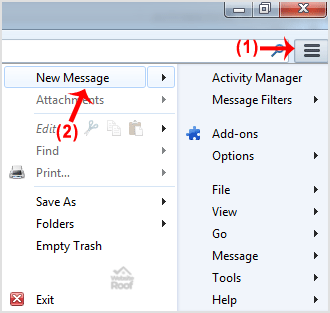
2. Click on the Menu Icon located on the right side of the screen and then go to “New Message“. A drop box will open.
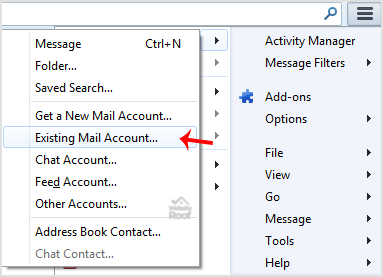
3. Now click on the “Existing Mail Account“.
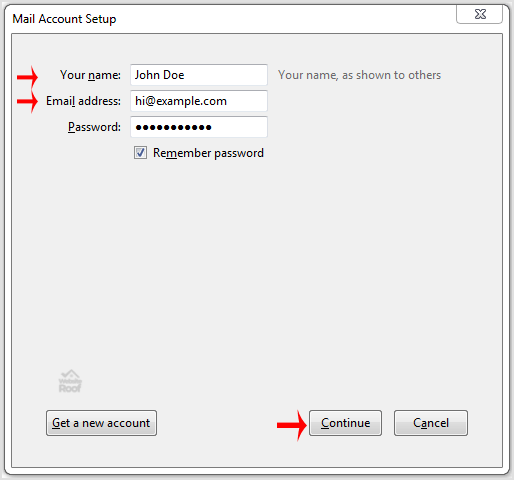
4. In Mail Setup Account, fill out your name, full email address like “yourname@example.com“, and the password of your email account. Then click on “Continue“.
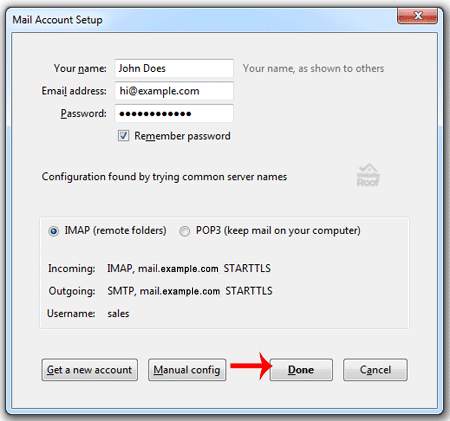
5. It can take a few minutes to configure your email account so be patient. Once it is done, you will need to click on “Done”.
6. If it shows an SSL Security exception, then click on the “Confirm Security Exception” button and the warning will disappear within few minutes.
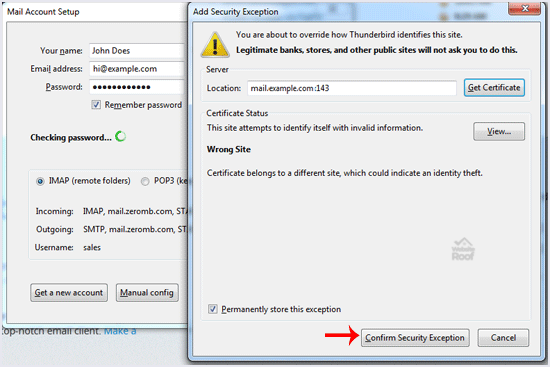
Congratulations, Your email is setup up successfully. Now, you can manage your email through Mozilla Thunderbird.
0 out Of 5 Stars
| 5 Stars | 0% | |
| 4 Stars | 0% | |
| 3 Stars | 0% | |
| 2 Stars | 0% | |
| 1 Stars | 0% |
